Select an existing R session
Connect the extension to the workspace you are already using.
Command or action
DataRaft: Select R Session
What this does
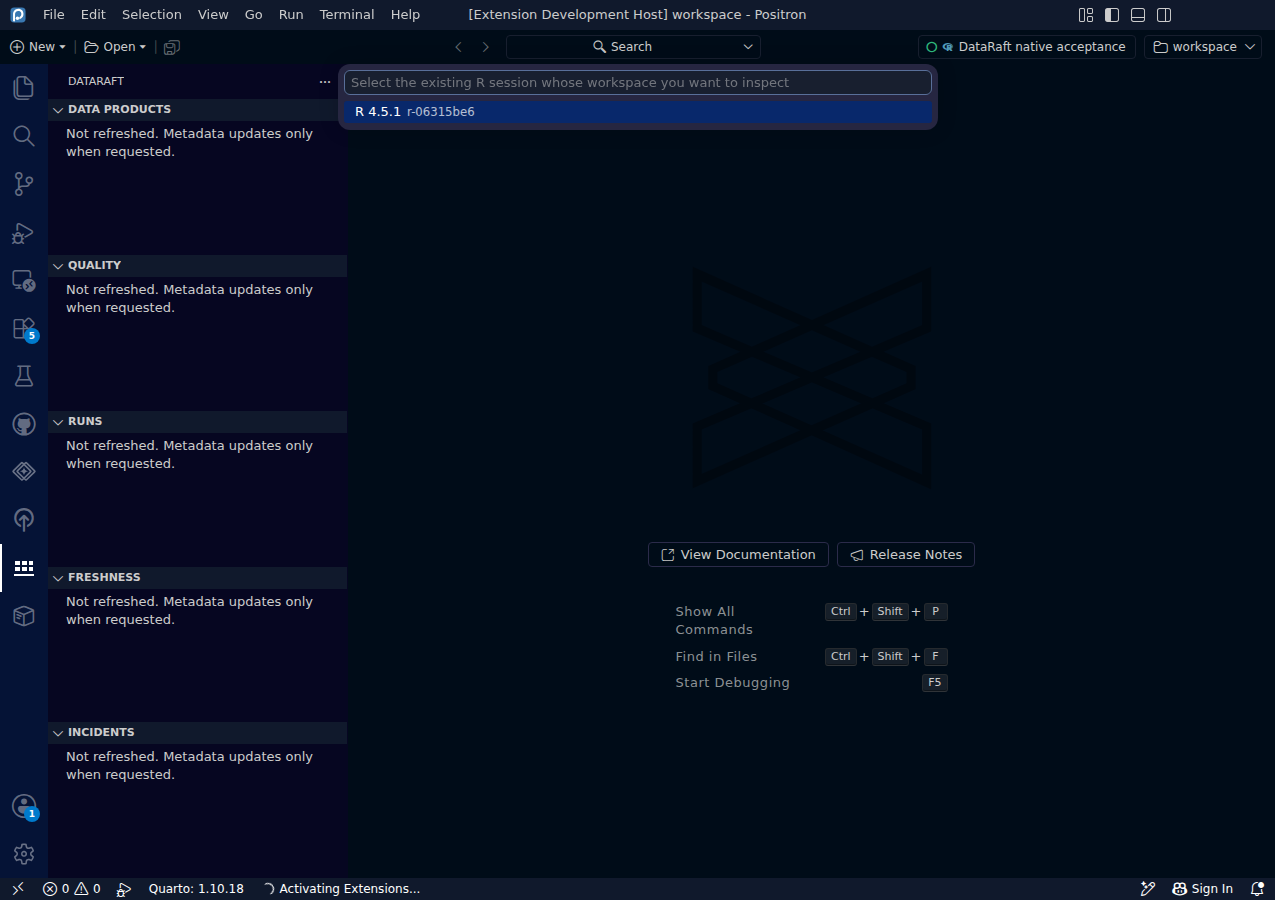
The extension attaches to an existing R console session. Your objects and retained trial results stay in that session. DataRaft does not start an R process on your behalf.
Try it
- Start an R console in Positron and load your DataRaft workspace.
- Install
dataraft.idein the R environment used by that session. - Open the Command Palette and choose DataRaft: Select R Session.
- Select the session whose workspace contains your products.
- Use DataRaft: Refresh Metadata to populate the DataRaft views.
Read the screenshot
The picker identifies the existing R session. Selecting it establishes the execution context for subsequent explicit commands. The R session identifier is temporary and will be different in your own workspace.
Keep in mind
Live R commands require Positron and a trusted workspace. In a remote workspace, the extension and R must run on the same host and share access to the temporary directory. Switching sessions invalidates responses still in flight. A busy session rejects execution requests; wait until it is ready before trying again.
0d55d40. Screenshot automation: 0d55d40. Successful native capture run ↗